Initial Setup
Launch Codex, create an account, sign in, and understand what happens on first launch.
Initial Setup
After you install Codex, launch the desktop app from your applications menu or desktop shortcut. The first launch may take longer than later launches because Codex checks for required extensions and installs any missing core extensions from Open VSX.
If you are setting up Codex for the first time, stay online until the startup screen appears. Later editing can continue offline for local projects, but first launch, login, project download, sync, AI, and new extension pins need network access.
First Launch Checklist
- Open Codex.
- Approve operating-system prompts, such as opening an unsigned app or allowing microphone access for audio workflows.
- Wait for the startup screen to finish loading.
- If Codex asks to reload after extension setup, allow the reload.
- Sign in or create an account.
Codex includes built-in app components that install and manage the translation extensions. If a team project requires specific extension versions, Codex may switch into a pinned profile and reload before the project opens.
Create an Account
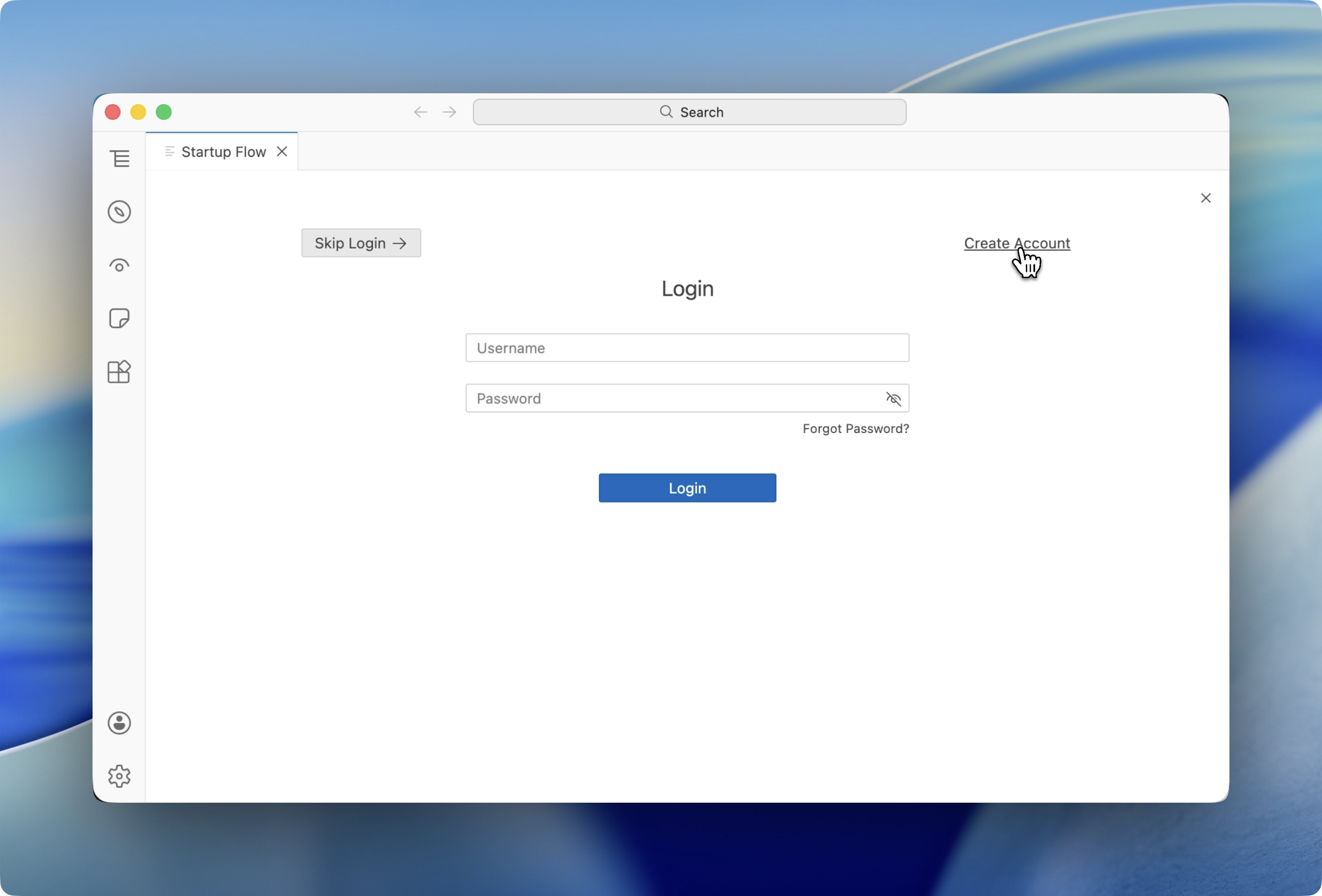
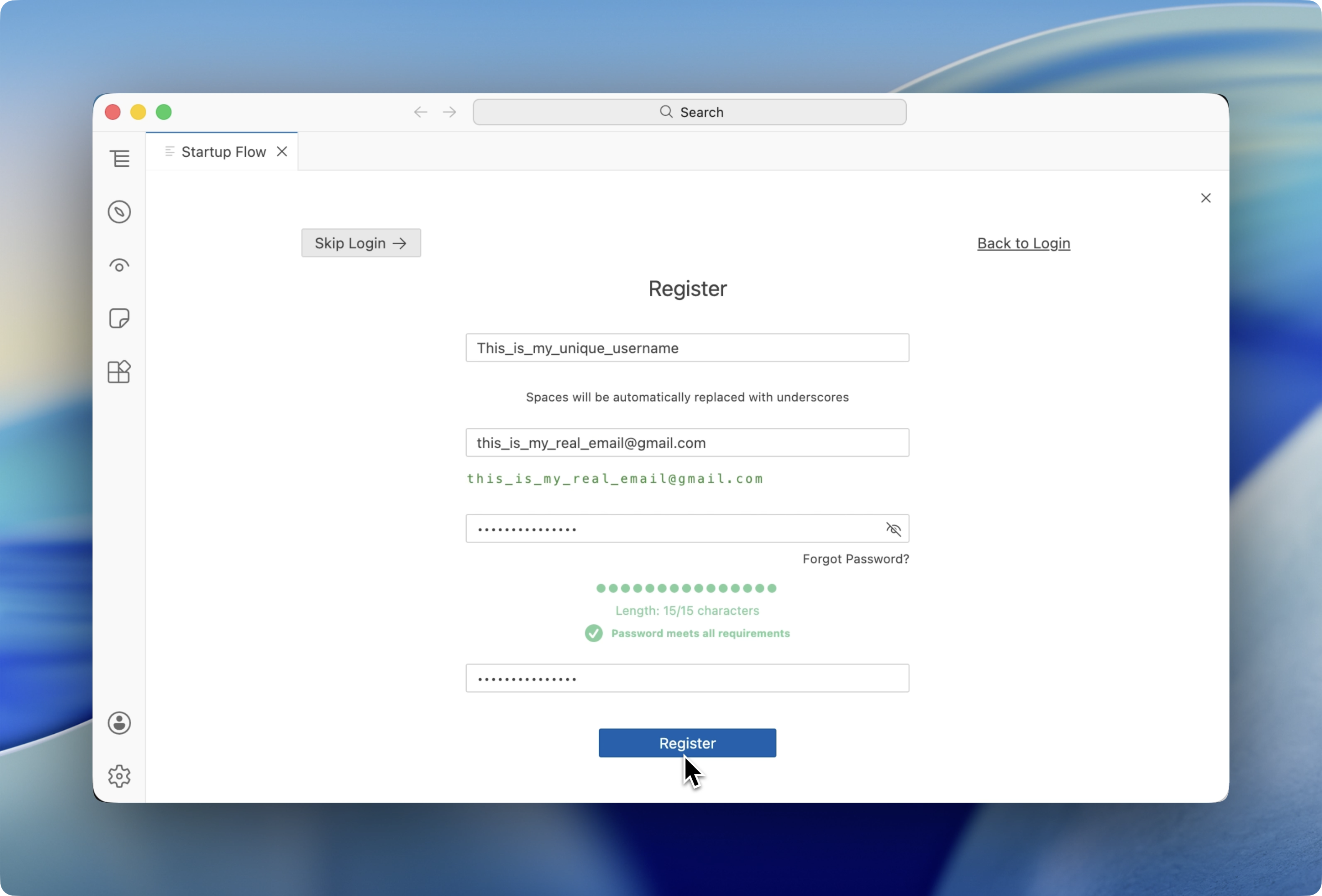
- On the startup screen, choose the option to create a new account.
- Enter a username, email address, and password.
- Click Register.
- After registration, Codex signs you in automatically.
Username
- Usernames must be unique.
- Usernames are case-sensitive.
- You can also use your email address when logging in.
- Usernames cannot be changed after account creation.
Email Address
Use an email address you can access. Password resets are sent by email, so fake or inaccessible addresses can lock you out of your account.
Password
Passwords must:
- Be at least 15 characters long.
- Avoid using parts of your username or email address.
The current visible validation is length plus avoiding username/email fragments. If Codex shows a stricter message in the app, follow the app message.
Sign In Later
When you need to sign in manually:
- Open Codex.
- Enter your username or email address.
- Enter your password.
- Click Login.
Your session normally persists across app restarts. You may be asked to sign in again after a token expires, after clearing app data, or when opening a project that needs cloud access.
Forgot your password?
Use Forgot Password on the login screen. See Reset Forgotten Password.
What To Do Next
- Create a project if you are starting new work.
- Open or download a project if your team has already shared one.
- Import source files when your project is ready.